> ## Documentation Index
> Fetch the complete documentation index at: https://reaperagent.com/docs/llms.txt
> Use this file to discover all available pages before exploring further.
# Chat Interface
> How to interact with Reagent through the conversational chat interface
The chat interface is your primary way to interact with Reagent. Type natural language requests, and Reagent translates them into actions.
## Sending Messages
Type your request in the message input at the bottom of the screen and press **Enter** to send.
You can be conversational:
```
Remove anything below 100Hz on the item that has most amount of low-end.
```
Or direct:
```
Analyze all selected media item spectrum and check which one has the most amount of low-end. Add EQ to that item and apply highpass at 100Hz.
```
Reagent understands your intent by gathering context using different tools at its disposal.
### Attaching Files
You can attach reference files to your messages for use during processing — like a script for dialogue editing, a spreadsheet for batch renaming, or a PDF for reference.
**To attach a file:**
* Click the **+** button in the chat input toolbar and select "Attach file" or "Attach folder"
* **Paste a file path** directly into the input — paths starting with `/`, `~/`, or `C:\` are automatically detected and converted to file chips
Attached files appear as inline badges in your message. You can attach multiple files alongside your text.
**Supported file types include:** PDF documents, Word documents (`.docx`), Excel spreadsheets (`.xlsx`), text files, and images.
```
Edit the dialogue on the VO track using the attached script as reference
```
## Chat Sessions
### Starting New Sessions
Click the **New Chat** button (or use the keyboard shortcut) to start a fresh conversation. Previous context is cleared, and you begin with a clean slate.
Start a new session when switching to an unrelated task. This helps Reagent focus on your current request without confusion from earlier conversation. This also **slightly** lowers credit usage.
Only one chat can be active at any given moment. Do not attempt to run simultaneous chats as this can lead to your REAPER session getting corrupted.
### Session History
Your chat history is saved automatically. You can:
* Scroll back through previous messages in the current session
* Review past sessions from the sidebar
* Resume where you left off when you reopen Reagent
## Understanding Responses
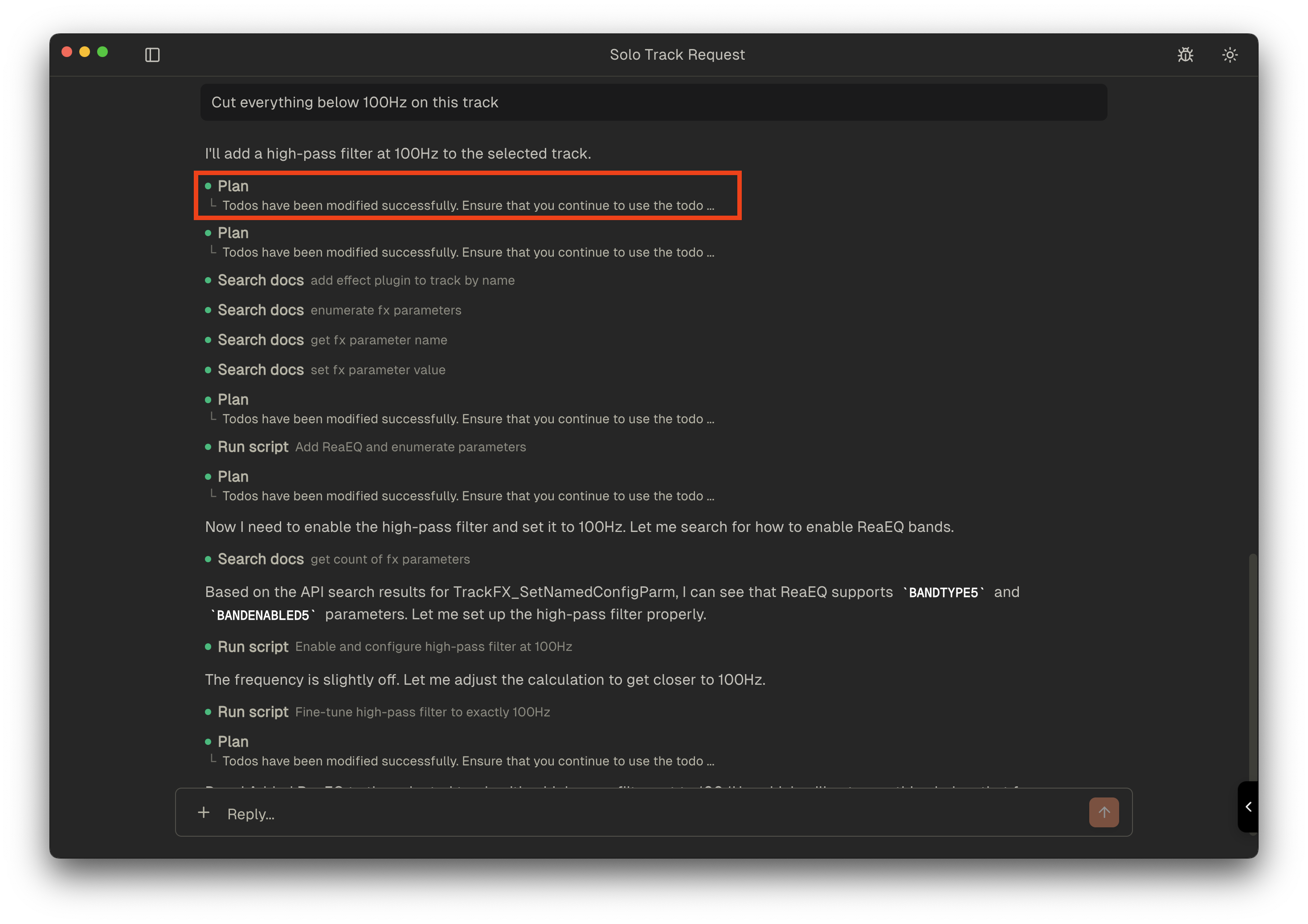
When Reagent processes your request, you'll see:
### Tool Calls
When Reagent needs information from REAPER or needs to perform an action, it uses tools. You'll see the tool name and its output:
 #### Agent Errors
If something goes wrong and you see some red text with the tool output. Don't be alarmed, Reagent will attempt to recorrect itself.
## Tips for Effective Prompts
### Be Specific
The more specific your request, the better the results:
| Less Effective | More Effective |
| --------------------------- | ------------------------------------------------------------------ |
| "Fix the tracks" | "Rename tracks 1-4 to match their first item's filename" |
| "Organize this" | "Move all items with 'SFX' in the name to track 10" |
| "Make it sound more sci-fi" | "Add flanger plugin to the loudest layers and randomize paramters" |
### Reference Selections
Reagent automatically reads your current REAPER state — selected items, selected tracks, cursor position, and time selection — every time you send a message. You don't need to describe your selection; just refer to it naturally:
* "Analyze the **selected items**"
* "What tracks are **currently selected**?"
* "Rename all items within each **region** to match the region name with incremented suffixes"
* "Remove silence from items within the **time selection**"
### Chain Operations
For complex operations, you'll get better results by describing multi-step workflows with clear intentions:
```
For each selected item:
1. Detect the peaks
2. Place markers at each peak
3. Split the item at the markers
```
The more familiar you are with Reagent's available tools, the better results you'll get.
### Ask Questions
Reagent can answer questions about your project and file system:
* "Is there an EQ used somewhere in this session?"
* "The mix has a large amount of low-end, investigate whether any additional plugins are used for boosting the bass"
* "Are there any items with duplicate names in this session or in the desktop folder?"
### Copying a Chat
Click the **Copy** button in the top bar to copy the entire conversation to your clipboard as formatted text. This is useful for sharing workflows, saving instructions, or reporting issues.
### Cancelling an Agent Question
When Reagent asks you to choose between options mid-task, you can dismiss the question with the **Cancel** button or by pressing **Esc**. The agent stops cleanly instead of guessing past you, and you can redirect the conversation with a fresh message.
## Keyboard Shortcuts
Keyboard shortcuts can be found in **Settings > Shortcuts** within Reagent.
#### Agent Errors
If something goes wrong and you see some red text with the tool output. Don't be alarmed, Reagent will attempt to recorrect itself.
## Tips for Effective Prompts
### Be Specific
The more specific your request, the better the results:
| Less Effective | More Effective |
| --------------------------- | ------------------------------------------------------------------ |
| "Fix the tracks" | "Rename tracks 1-4 to match their first item's filename" |
| "Organize this" | "Move all items with 'SFX' in the name to track 10" |
| "Make it sound more sci-fi" | "Add flanger plugin to the loudest layers and randomize paramters" |
### Reference Selections
Reagent automatically reads your current REAPER state — selected items, selected tracks, cursor position, and time selection — every time you send a message. You don't need to describe your selection; just refer to it naturally:
* "Analyze the **selected items**"
* "What tracks are **currently selected**?"
* "Rename all items within each **region** to match the region name with incremented suffixes"
* "Remove silence from items within the **time selection**"
### Chain Operations
For complex operations, you'll get better results by describing multi-step workflows with clear intentions:
```
For each selected item:
1. Detect the peaks
2. Place markers at each peak
3. Split the item at the markers
```
The more familiar you are with Reagent's available tools, the better results you'll get.
### Ask Questions
Reagent can answer questions about your project and file system:
* "Is there an EQ used somewhere in this session?"
* "The mix has a large amount of low-end, investigate whether any additional plugins are used for boosting the bass"
* "Are there any items with duplicate names in this session or in the desktop folder?"
### Copying a Chat
Click the **Copy** button in the top bar to copy the entire conversation to your clipboard as formatted text. This is useful for sharing workflows, saving instructions, or reporting issues.
### Cancelling an Agent Question
When Reagent asks you to choose between options mid-task, you can dismiss the question with the **Cancel** button or by pressing **Esc**. The agent stops cleanly instead of guessing past you, and you can redirect the conversation with a fresh message.
## Keyboard Shortcuts
Keyboard shortcuts can be found in **Settings > Shortcuts** within Reagent.