> ## Documentation Index
> Fetch the complete documentation index at: https://reaperagent.com/docs/llms.txt
> Use this file to discover all available pages before exploring further.
# ReaScript
> Create, review, save, and manage custom Lua scripts for REAPER
When Reagent's built-in tools don't cover what you need, you can ask it to write custom Lua scripts for REAPER. Reagent generates the code, shows it to you for review, and lets you run, save, or register it as a REAPER action—all from the chat interface.
## How It Works
There are two ways Reagent can run code in REAPER:
| Mode | What happens |
| ----------- | ------------------------------------------------------------------------------------------------------------------------------------------------------ |
| **Execute** | Reagent writes and runs Lua code immediately in REAPER. You see the result but not the code. This is what happens behind the scenes for most requests. |
| **Create** | Reagent generates the code and presents it for review. You decide when to run it, save it, or discard it. |
Reagent picks the right mode automatically based on your prompt. If you want to see the code before it runs, just say so:
```
Write me a script that moves all selected items on to the selected track starting at the cursor position. Items should not overlap.
```
```
Show me the code to set all selected items to mono
```
```
Create a script that toggles mute on tracks with "SFX" in the name
```
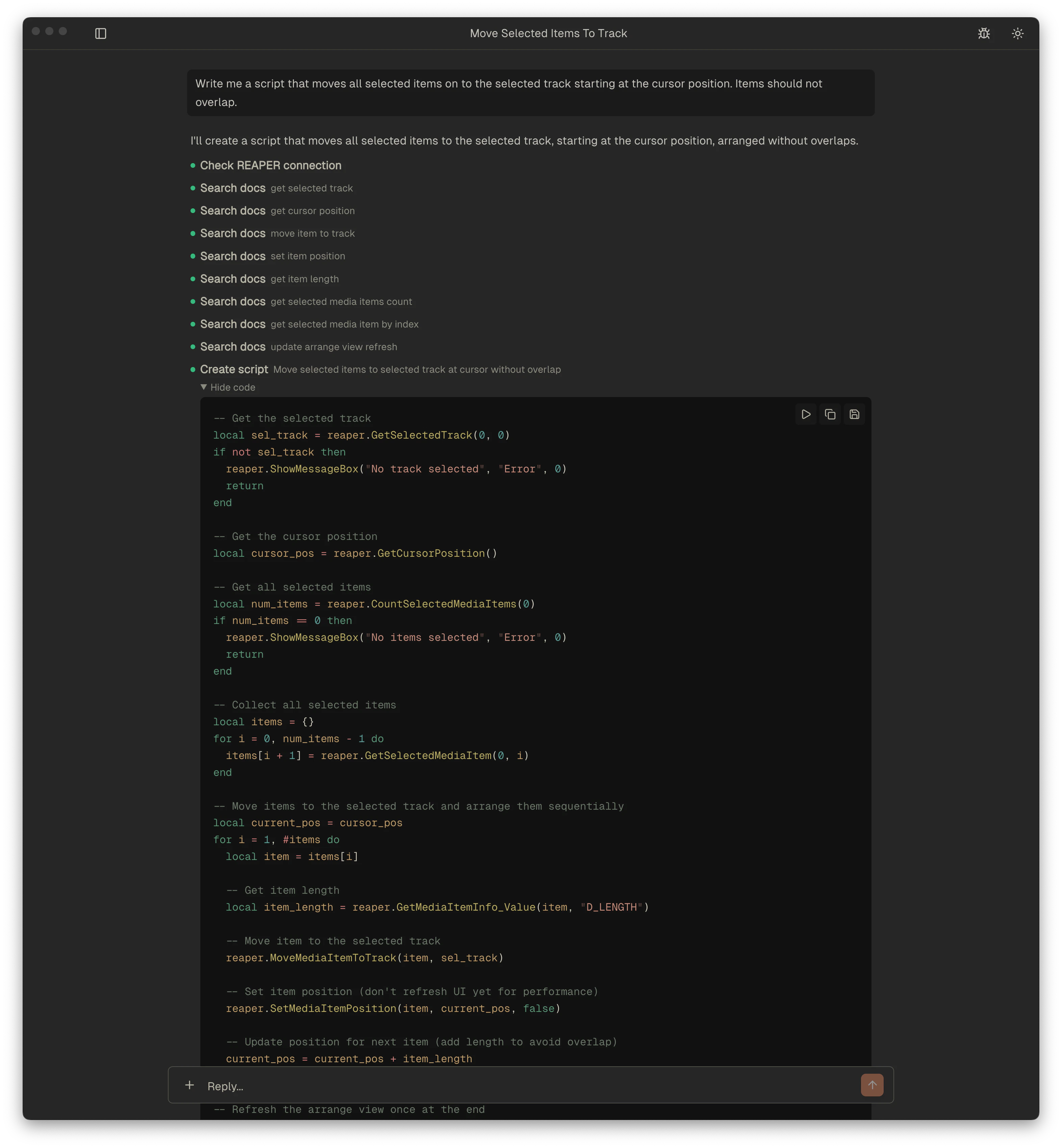 ## API Search
When writing scripts, Reagent uses a built-in semantic search over the full ReaScript API documentation. Instead of guessing function names, it searches by describing what it needs to do — like "how to add an effect plugin to a track" or "get item fade length" — and gets back the correct function signatures, parameters, and usage notes.
This means Reagent writes scripts using verified API calls rather than memorized function names, reducing errors and ensuring compatibility with your version of REAPER.
You can also use this directly:
```
What REAPER API functions deal with track sends?
```
```
How do I get the sample rate of a media item's source in ReaScript?
```
## The Script Panel
When Reagent creates a script, it appears in a dedicated panel with controls for managing it.
## API Search
When writing scripts, Reagent uses a built-in semantic search over the full ReaScript API documentation. Instead of guessing function names, it searches by describing what it needs to do — like "how to add an effect plugin to a track" or "get item fade length" — and gets back the correct function signatures, parameters, and usage notes.
This means Reagent writes scripts using verified API calls rather than memorized function names, reducing errors and ensuring compatibility with your version of REAPER.
You can also use this directly:
```
What REAPER API functions deal with track sends?
```
```
How do I get the sample rate of a media item's source in ReaScript?
```
## The Script Panel
When Reagent creates a script, it appears in a dedicated panel with controls for managing it.
 ### Reviewing Code
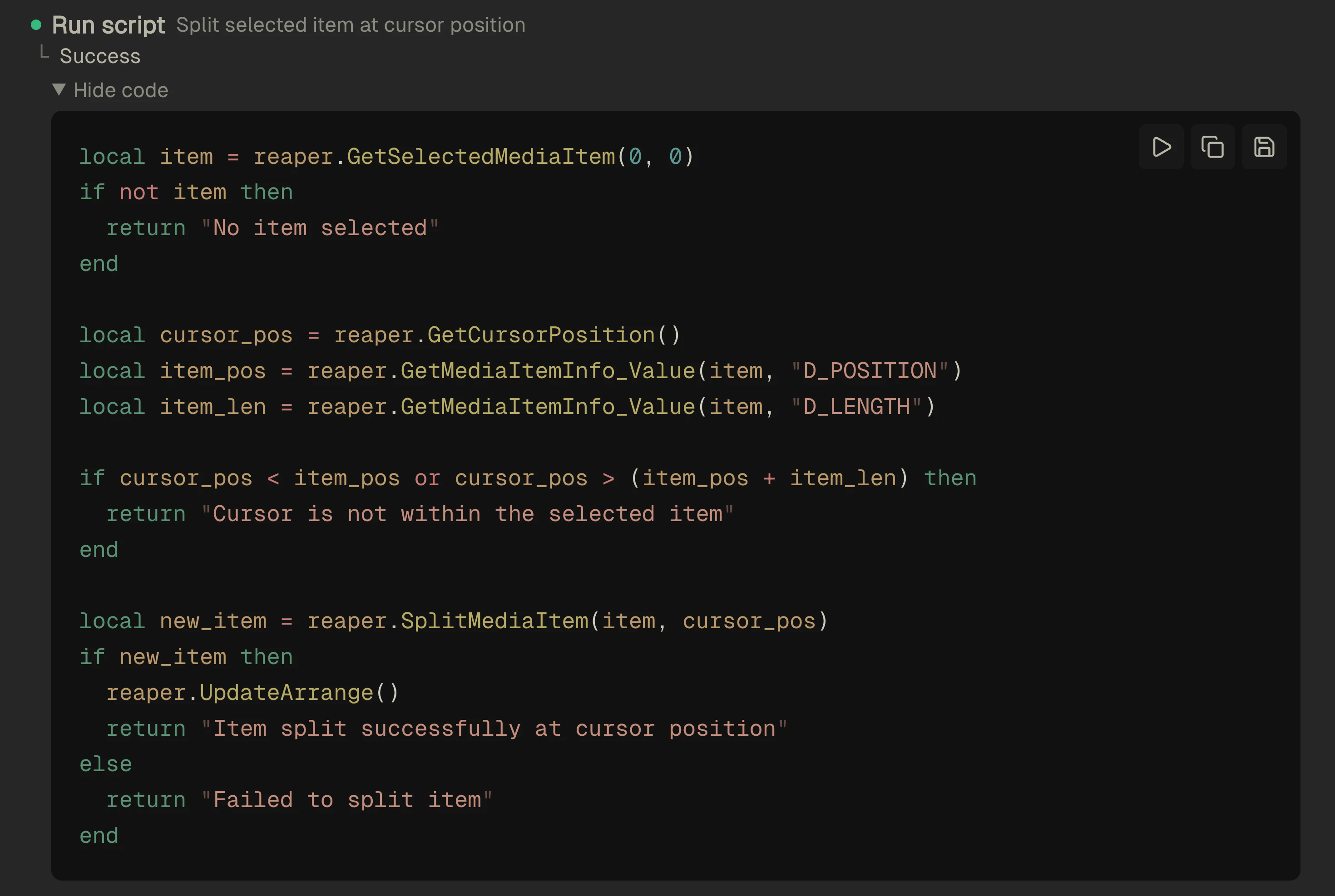
The panel displays the full Lua source code with syntax highlighting. Read through it, verify the logic, and decide what to do next.
### Running
Click the **Play** button to execute the script in REAPER immediately. You'll see a spinner while it runs, then a checkmark on success or an error indicator if something went wrong.
### Copying
Click the **Copy** button to copy the full script to your clipboard.
### Saving
### Reviewing Code
The panel displays the full Lua source code with syntax highlighting. Read through it, verify the logic, and decide what to do next.
### Running
Click the **Play** button to execute the script in REAPER immediately. You'll see a spinner while it runs, then a checkmark on success or an error indicator if something went wrong.
### Copying
Click the **Copy** button to copy the full script to your clipboard.
### Saving
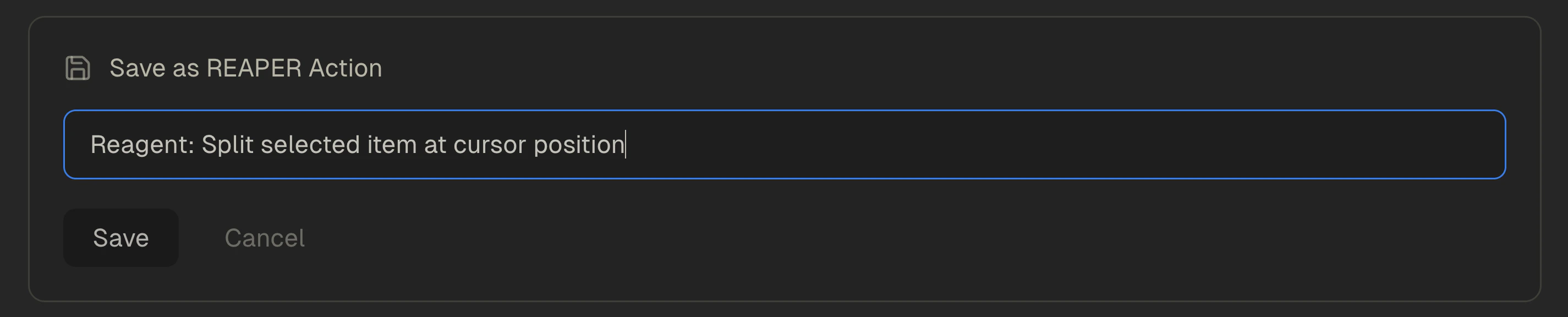 Click **Save** to save the script as a `.lua` file and register it as a REAPER action. All scripts generated from Reagent are saved under the `Scripts/reagent/` folder in your REAPER resource directory. On first save:
1. A name field appears, pre-filled based on the script's purpose (e.g., `Reagent: Toggle SFX Mutes`)
2. Adjust the name if you like, then confirm
3. The file is saved and registered—it shows up in REAPER's Action List as `Script: .lua`
4. REAPER opens a shortcut dialog so you can assign a keyboard shortcut to your new script
After the first save, the panel remembers the file path. Subsequent saves are instant—click Save and the file is overwritten with the current code. No form, no prompt.
## Working with Existing Scripts
Reagent is aware of scripts in your REAPER Scripts directory. You can reference existing scripts and ask Reagent to modify them:
```
Update my "Toggle SFX Mutes" script to also toggle sends
```
```
Add error handling to my item renaming script
```
When Reagent modifies an existing script, the panel links to the original file automatically. Saving overwrites the original rather than creating a duplicate.
Click **Save** to save the script as a `.lua` file and register it as a REAPER action. All scripts generated from Reagent are saved under the `Scripts/reagent/` folder in your REAPER resource directory. On first save:
1. A name field appears, pre-filled based on the script's purpose (e.g., `Reagent: Toggle SFX Mutes`)
2. Adjust the name if you like, then confirm
3. The file is saved and registered—it shows up in REAPER's Action List as `Script: .lua`
4. REAPER opens a shortcut dialog so you can assign a keyboard shortcut to your new script
After the first save, the panel remembers the file path. Subsequent saves are instant—click Save and the file is overwritten with the current code. No form, no prompt.
## Working with Existing Scripts
Reagent is aware of scripts in your REAPER Scripts directory. You can reference existing scripts and ask Reagent to modify them:
```
Update my "Toggle SFX Mutes" script to also toggle sends
```
```
Add error handling to my item renaming script
```
When Reagent modifies an existing script, the panel links to the original file automatically. Saving overwrites the original rather than creating a duplicate.