> ## Documentation Index
> Fetch the complete documentation index at: https://reaperagent.com/docs/llms.txt
> Use this file to discover all available pages before exploring further.
# Quick Start
> Get Reagent connected to REAPER in a few minutes
This guide gets you up and running with Reagent as quickly as possible. For detailed installation instructions, see the [full installation guide](/getting-started/installation).
Before starting, make sure you have REAPER installed on your computer. Reagent works with any version of REAPER that supports Lua scripting.
## 1. Create Your Account
Create an account at [reaperagent.com/signup](https://www.reaperagent.com/signup) before downloading the app.
## 2. Download and Install Reagent
1. Download Reagent from [reaperagent.com/download](https://www.reaperagent.com/download)
2. Run the installer and follow the prompts
3. Launch Reagent and sign in with your account
## 3. Install the SWS Extension
The [SWS/S\&M Extension](https://www.sws-extension.org/) is required for Reagent to access advanced REAPER features.
Visit [sws-extension.org](https://www.sws-extension.org/) and download the installer for your platform.
Close REAPER if it's running, then run the SWS installer.
Open REAPER and look for "Extensions" in the menu bar. If you see SWS-related options, you're set.
## 4. Complete the Onboarding
Launch Reagent and sign in with your account. The onboarding wizard will guide you through:
1. Installing the REAPER Bridge
2. Connecting to REAPER
3. Verifying everything works
**Highly recommended:** Configure the Bridge to start automatically with REAPER. Otherwise, you'll need to run it manually each session for Reagent to connect.
By default, you need to run the `reagent_bridge` action each time you open REAPER. To skip this step forever, set it as a global startup action using the SWS extension:
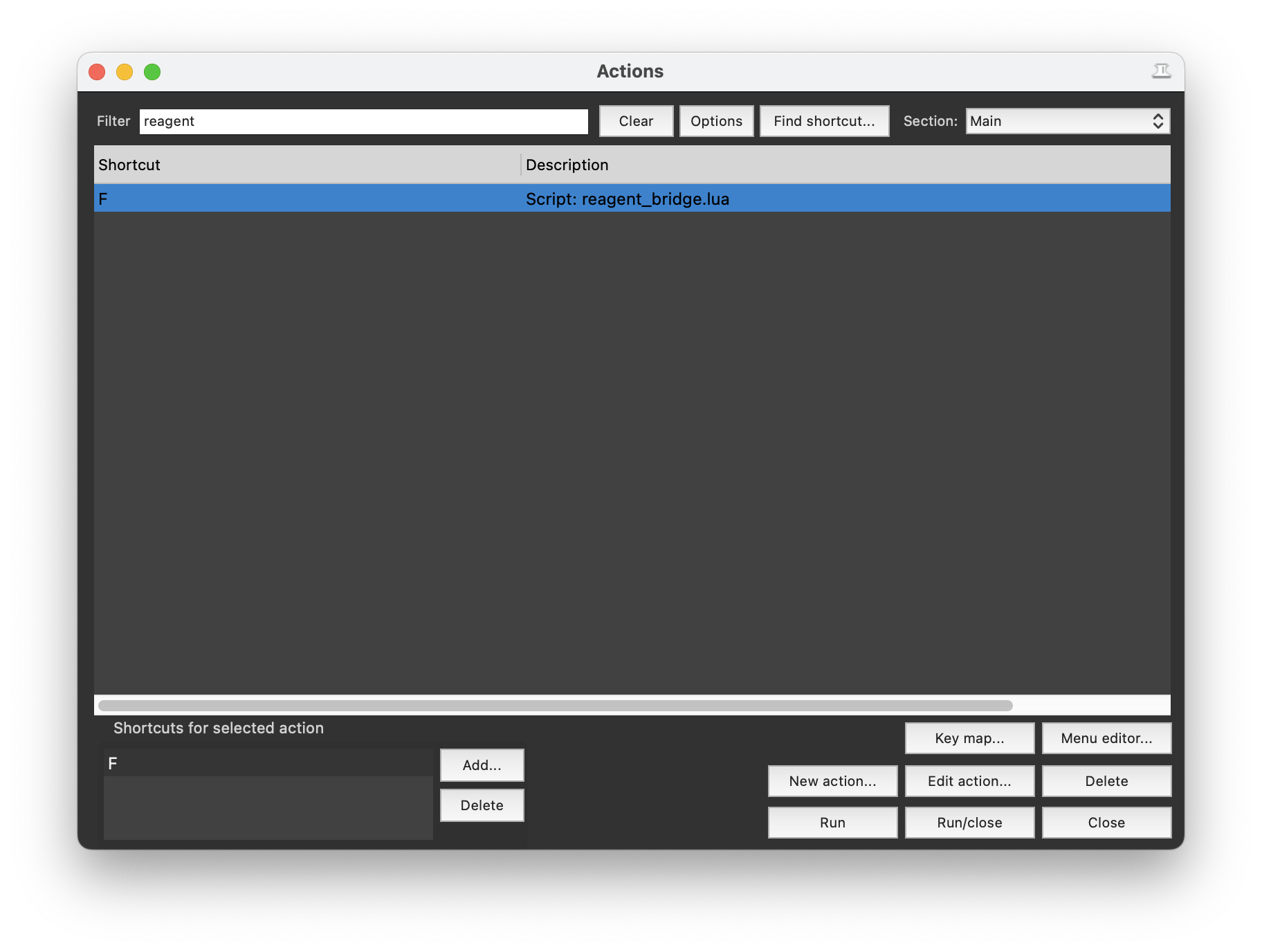
In REAPER, go to **Actions > Show action list** (or press `?`) and search for `reagent_bridge`.
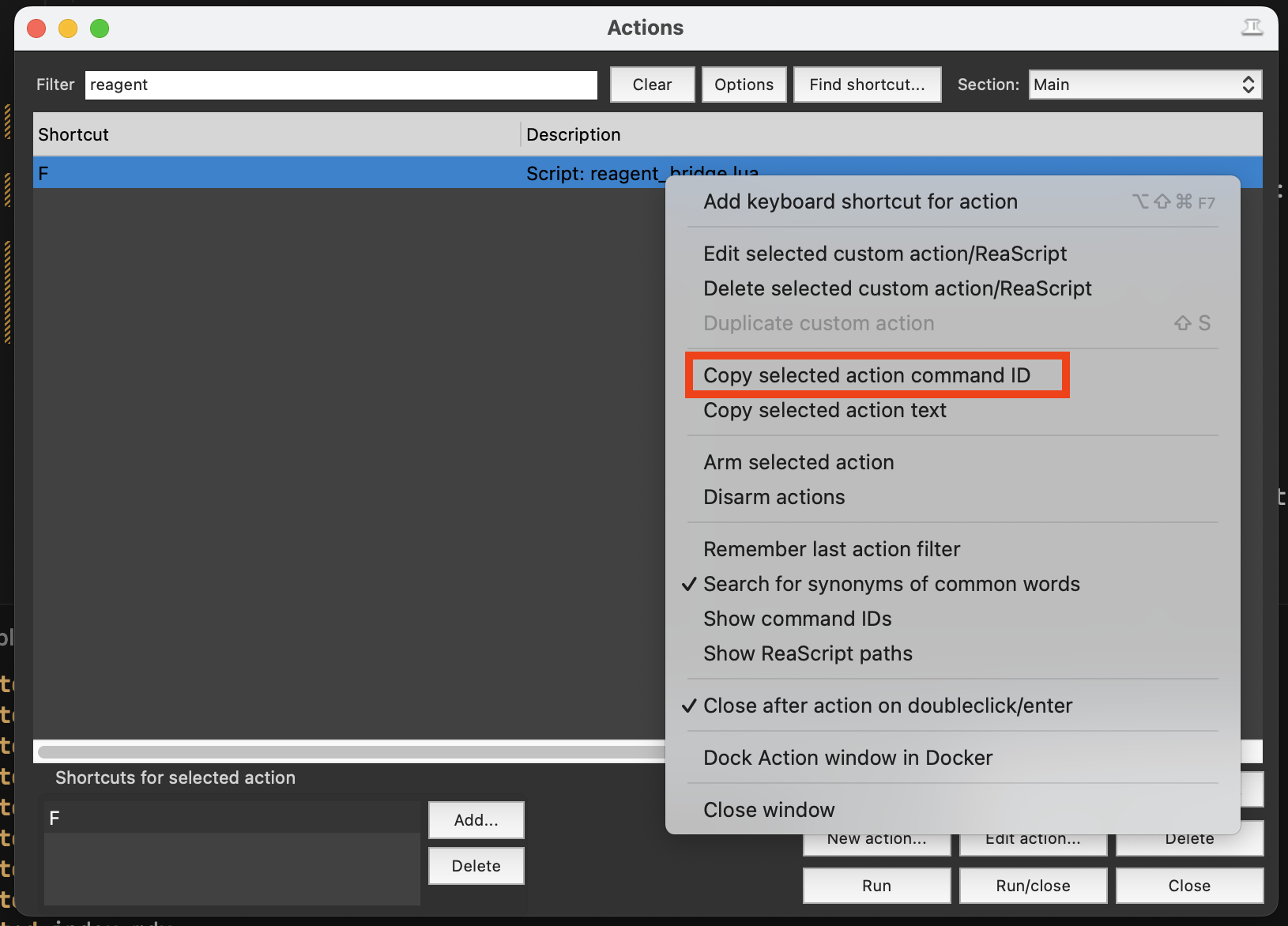
 Right-click the `reagent_bridge` action and select **Copy selected action command ID**.
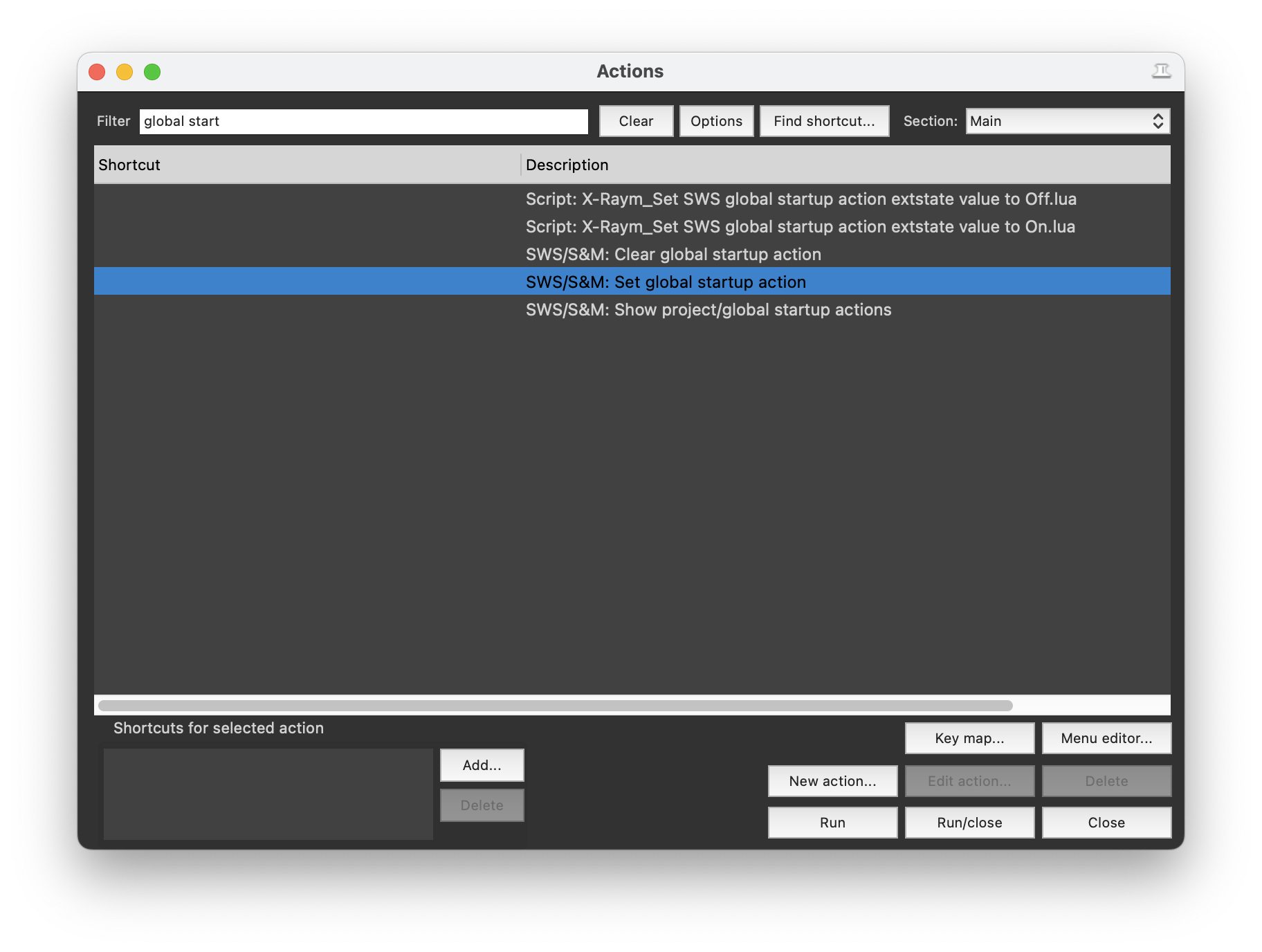
 Run Set global startup action...
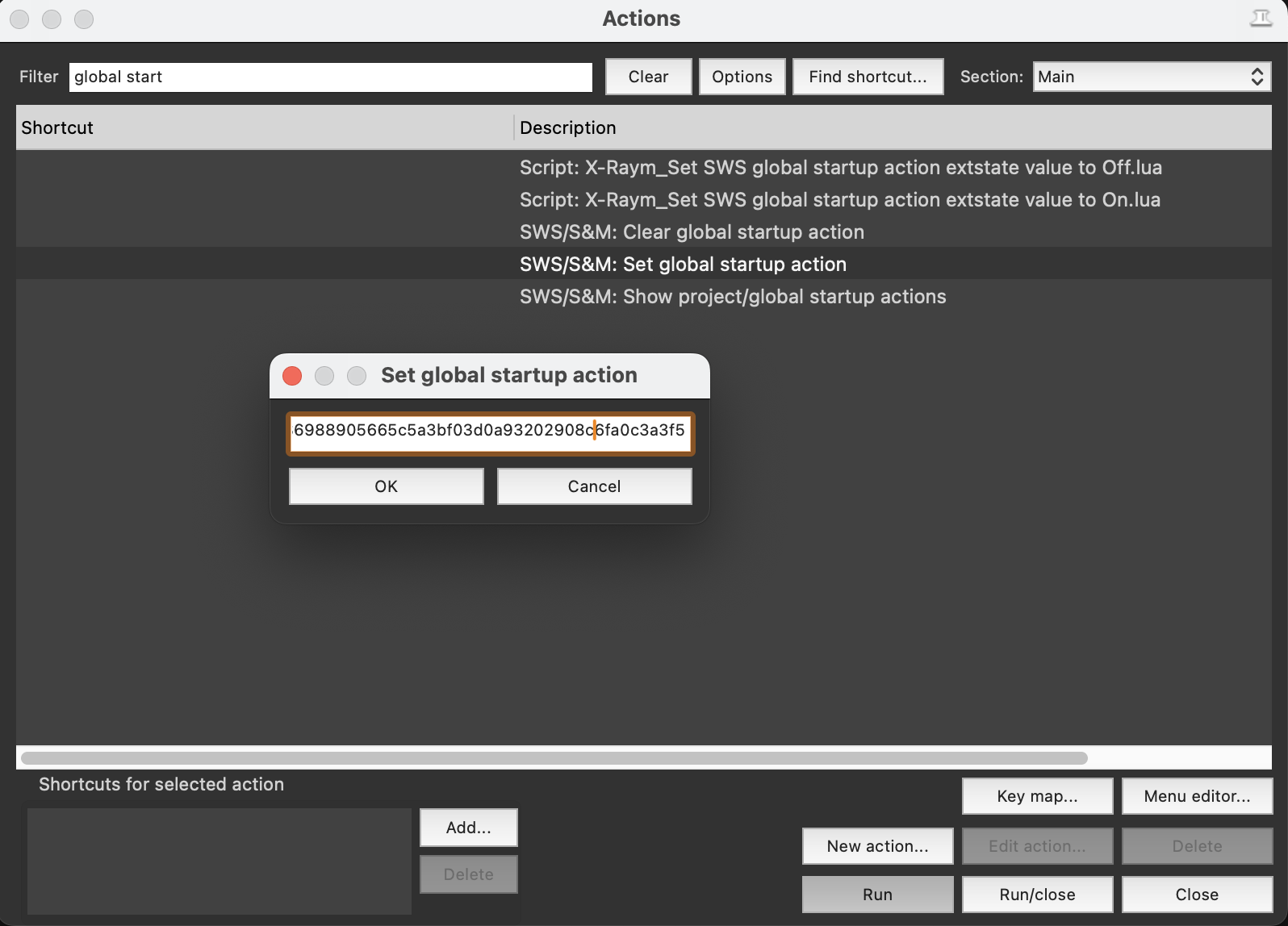
 Paste the command ID and click **OK**. The Bridge will now start automatically whenever you open REAPER.
 ## 5. Send Your First Command
With the Bridge connected, you're ready to use Reagent.
1. Type a message in the chat input, for example:
```
Is REAPER connected?
```
2. Press Enter to send
3. Reagent will query REAPER and display the results
Try some other commands:
* "Create 4 new tracks named Drums, Bass, Keys, and Vocals"
* "Rename all media item on this track to sfx\_explo\_01.. etc increment name"
* "Cut everything below 100Hz on this track"
## Next Steps
Detailed setup including permissions and troubleshooting.
Explore everything Reagent can do.
See practical examples and prompts.
Having issues? Check common solutions.
## 5. Send Your First Command
With the Bridge connected, you're ready to use Reagent.
1. Type a message in the chat input, for example:
```
Is REAPER connected?
```
2. Press Enter to send
3. Reagent will query REAPER and display the results
Try some other commands:
* "Create 4 new tracks named Drums, Bass, Keys, and Vocals"
* "Rename all media item on this track to sfx\_explo\_01.. etc increment name"
* "Cut everything below 100Hz on this track"
## Next Steps
Detailed setup including permissions and troubleshooting.
Explore everything Reagent can do.
See practical examples and prompts.
Having issues? Check common solutions.