> ## Documentation Index
> Fetch the complete documentation index at: https://reaperagent.com/docs/llms.txt
> Use this file to discover all available pages before exploring further.
# Troubleshooting
> Solutions to common Reagent issues
This guide covers common issues and their solutions. If you don't find your answer here, contact support at [reaperagent.com/contact](https://www.reaperagent.com/contact).
## Connection Issues
### Bridge Won't Connect
**Symptoms:**
* "Disconnected" status in Reagent
* "Cannot connect to REAPER" errors
* Commands timing out
**Solutions:**
Reagent can only connect when REAPER is open with a project loaded.
In REAPER:
1. Go to **Actions > Show action list** (or press `?`)
2. Search for `reagent_bridge`
3. Select **Script: reagent\_bridge.lua** and click **Run**
You need to do this each time you open REAPER.
If REAPER has a modal dialog open (like a save dialog, plugin window, or preferences), the Bridge cannot process commands.
Close any open dialogs in REAPER and try again.
The Bridge scripts may be missing or corrupted:
1. In Reagent, go to **Settings > Connectors**
2. Click **Install Bridge**
3. Restart the Bridge action in REAPER
***
### Connection Times Out
**Symptoms:**
* Commands hang for 30+ seconds
* "Operation timed out" errors
**Likely causes:**
1. **REAPER is busy** — A script or plugin may be blocking. Try closing plugin windows or stopping playback.
2. **Heavy project** — Very large projects may slow down queries. Try with a smaller test project.
***
### "SWS Extension Not Found" Warning
**Symptoms:**
* Warning about missing SWS extension
* Some features not working
**Solution:**
Install the SWS/S\&M Extension:
1. Go to [sws-extension.org](https://www.sws-extension.org/)
2. Download the installer for your platform
3. Close REAPER completely
4. Run the installer
5. Reopen REAPER
6. Verify: Look for "Extensions" in the REAPER menu bar
***
## Custom REAPER Path
If Reagent can't find your REAPER installation automatically, you may have REAPER installed in a non-standard location.
### Configuring a Custom Path
In Reagent, go to **Settings > Connectors**.
Click the **Change Path** button.
Navigate to your REAPER installation:
Select the `REAPER` Folder (usually in `Application Support` or a custom location).
Select the `REAPER` folder (contains `reaper.exe`, usually in `AppData` folder).
Click **Save**, then click **Install Bridge** to copy the scripts to the correct location.
***
## Permission Issues
### macOS: File Access Denied
**Symptoms:**
* "Cannot access file" errors
* Audio analysis failing for certain files
* "Operation not permitted" messages
**Solutions:**
When Reagent needs to read files from a location, macOS will prompt for permission. Click **Allow**.
For unrestricted access to all files:
1. Open **System Settings > Privacy & Security > Full Disk Access**
2. Click **+**
3. Navigate to Applications and select Reagent
4. Toggle it on
5. Restart Reagent
***
### Windows: Administrator Access
**Symptoms:**
* Bridge won't connect when REAPER is run as Administrator
* Permission errors
**Solution:**
If you run REAPER as Administrator, you may need to run Reagent as Administrator too:
1. Right-click the Reagent shortcut
2. Select **Run as administrator**
Alternatively, run both applications without administrator privileges if possible.
***
## App Issues
### Reagent Won't Install on Windows
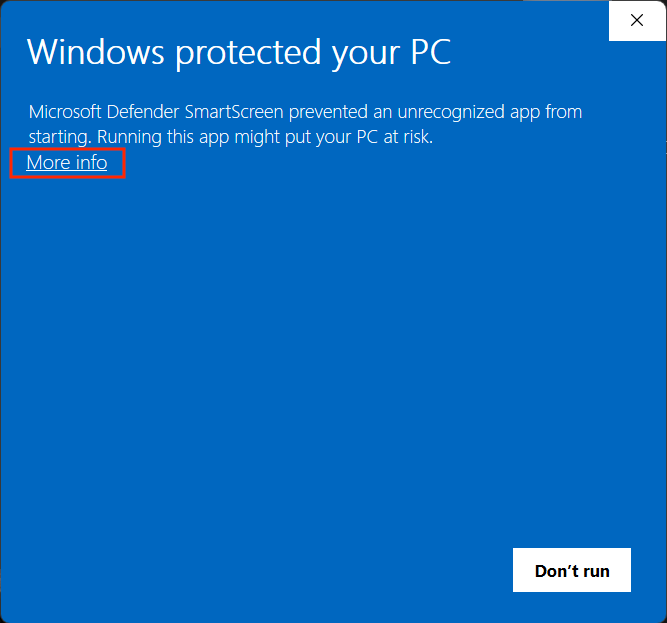
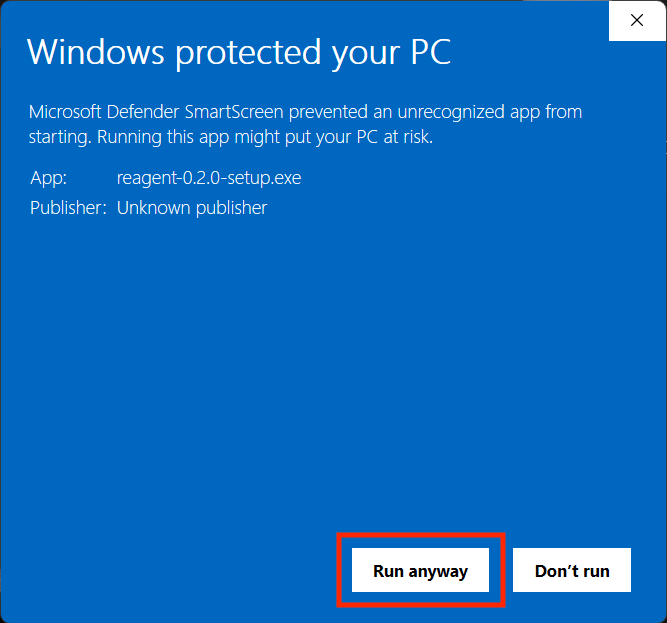
This happens because the app is not yet code signed. This will be resolved in a future update.
**Windows SmartScreen warning:**
1. Click **More info**
 2. Click **Run anyway**
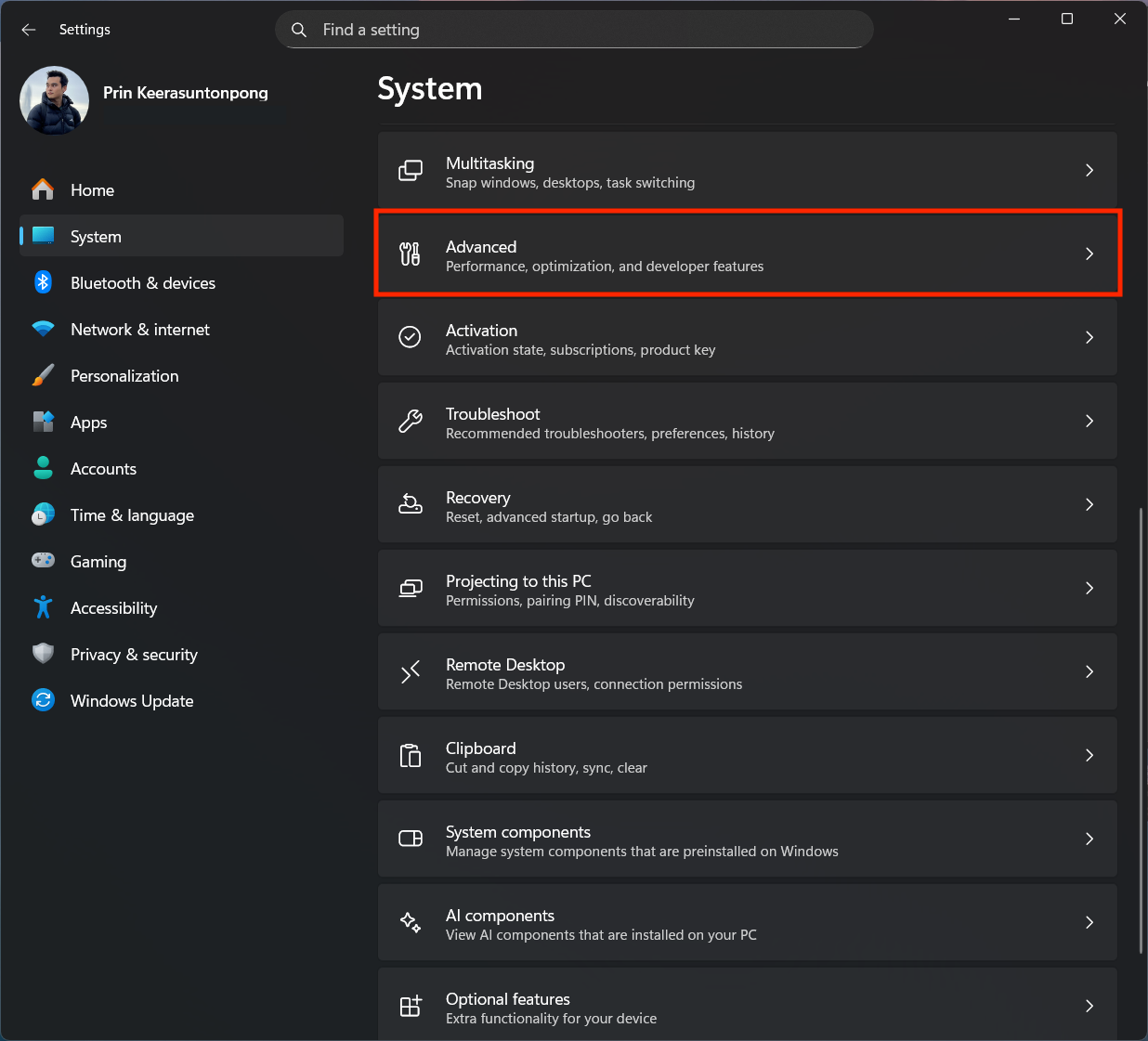
 **If SmartScreen does not show up:**
1. Open **Settings > Advanced**
**If SmartScreen does not show up:**
1. Open **Settings > Advanced**
 2. Toggle on **Developer Mode**
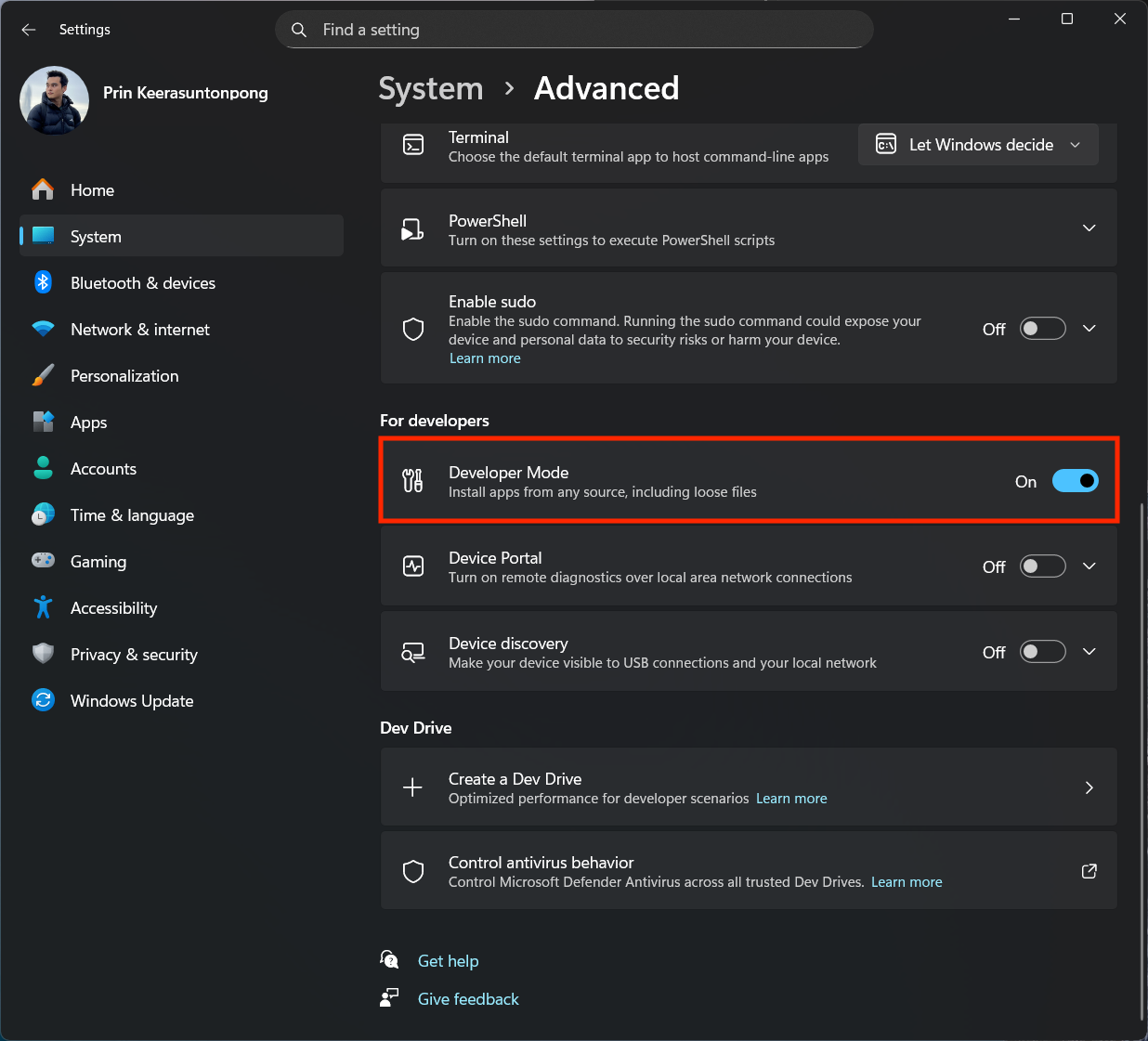 Try re-installing after you made these changes.
***
### Chat Not Responding
**Symptoms:**
* Messages don't send
* No response from Reagent
**Solutions:**
1. **Check your internet connection**
2. **Verify the connection to REAPER** (if your request needs REAPER)
3. **Start a new chat session** — Click **New Chat**
4. **Restart Reagent** — Close and reopen the app
***
## Performance Issues
### Slow Responses
**Possible causes:**
* **Large projects:** Queries on projects with many tracks/items take longer
* **Network latency:** Slow internet affects agent response times
* **Complex requests:** Multi-step operations process sequentially
***
## Getting Help
If you can't resolve your issue **Contact support** at [reaperagent.com/contact](https://www.reaperagent.com/contact) with:
* Description of the issue
* Steps to reproduce
* Relevant log excerpts
* Your operating system and REAPER version
I'll get back to you within 24 hours.
Try re-installing after you made these changes.
***
### Chat Not Responding
**Symptoms:**
* Messages don't send
* No response from Reagent
**Solutions:**
1. **Check your internet connection**
2. **Verify the connection to REAPER** (if your request needs REAPER)
3. **Start a new chat session** — Click **New Chat**
4. **Restart Reagent** — Close and reopen the app
***
## Performance Issues
### Slow Responses
**Possible causes:**
* **Large projects:** Queries on projects with many tracks/items take longer
* **Network latency:** Slow internet affects agent response times
* **Complex requests:** Multi-step operations process sequentially
***
## Getting Help
If you can't resolve your issue **Contact support** at [reaperagent.com/contact](https://www.reaperagent.com/contact) with:
* Description of the issue
* Steps to reproduce
* Relevant log excerpts
* Your operating system and REAPER version
I'll get back to you within 24 hours.