

Before You Start
- REAPER is connected, with the Bridge script running inside it. See Quick Start.
- The SWS extension is installed. Reagent needs it to find and edit your items. Applying edits and leveling volume don’t work without it. See System Requirements.
- The items are selected in REAPER. For dialogue editing, each item must be 0.5 seconds to 2 hours long. Longer items are rejected with an error, and shorter ones are skipped.
- You have credits. Transcription is charged by audio length, and analysis, translation and reading a PDF script also use credits. See Plans and Credits.
Automatic Dialogue Editor
Splitting on silence can’t tell a pause from a new take, so Reagent works from what was actually said. Select the items and ask:1
Transcribe
Reagent transcribes the selected items and detects the language. The Transcribe dialogue step doesn’t ask for approval in any permission mode, and the upload starts as soon as it runs.
2
Choose a mode
Reagent asks whether the recording is Voice Takes or Podcast / Audiobook / Narration, unless your message already says “voice takes”, “pick best takes”, “podcast”, “audiobook” or “narration”.
3
Analyze
Reagent finds and rates the takes in an Analyze transcription step:
- A breath or hesitation mid-line doesn’t split the take.
- A speaker starting a line over counts as a retake, even with no silence in between.
- Remarks like “let me try that again” are left out of the take text. Other booth talk, such as comments on the performance, becomes a red take you can review and delete.
- Each take is rated complete (the whole line was delivered) or incomplete (the speaker stopped early, restarted, or said something that isn’t in the script).
4
Apply edits
Reagent splits each item into one item per take, trims each to its take, renames it to its spoken text, colors incomplete takes red, and adds a 20 ms fade-in and fade-out. Takes keep their original timeline positions, and Reagent doesn’t close the gaps.Unless your permission mode is Full access, you approve an Apply dialogue edits request first.
5
Review the red takes
Listen to the red items in REAPER. They stay until you ask Reagent to delete them, for example with “Delete the incomplete takes”.
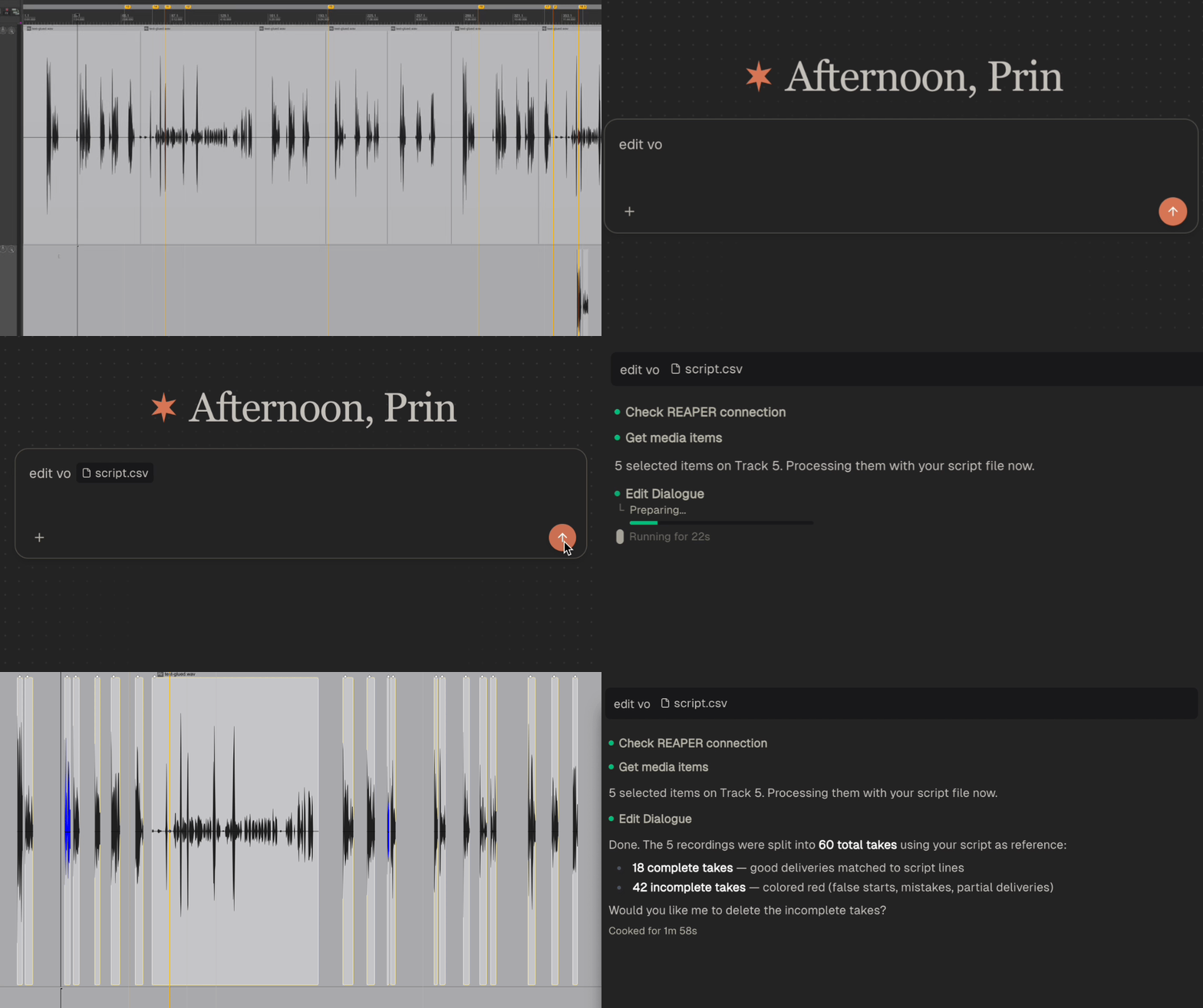
Recorded in an earlier version of Reagent. The chat now shows the steps described above.
Voice Takes Mode
For sessions where each line is read several times, such as VO or ADR. Reagent finds every take, including false starts, and uses the audio level to place each take’s start and end where the speech begins and ends. Without a script, Reagent reconstructs one from the transcript and rates the takes against it. Add your own script to give it the real lines. A take that matches no line in your script is marked incomplete, colored red, and stays in the project.Podcast Mode
For one continuous delivery, such as a podcast, audiobook, narration or interview.- With a script, Reagent matches the recording to the script section by section, keeps what matches, and leaves out filler words like “um” and “uh”. Longer stretches that don’t match, such as tangents, asides and false starts, become red takes. It also follows editing notes in your message, such as “leave out the sentence about the release date”.
- Without a script, Reagent keeps the best version of each point and leaves out filler words, stutters, false starts, repeated attempts and recording chatter like “let me start over”. Longer stretches it leaves out become red takes. Editing notes aren’t used.
Add a Script
A script, cue sheet or line list tells Reagent exactly which lines to expect.- Formats: CSV, TSV, TXT, PDF, DOCX and XLSX (first sheet only). Markdown (
.md) files aren’t used as a script. - To add one, click + > Attach file, drag the file onto the chat box, or paste the file’s full path. You can also paste the script text: more than 10 lines becomes a collapsed Script pasted block, which Reagent uses as the script.
- One script per chat. Reagent uses the first script you add, whether attached or pasted. Any supported file you attach counts as a script. A later pasted script replaces an earlier pasted one, but never an attached file. To switch script files, start a new chat.
Pipeline Stages
You can run the stages one at a time, for example to check the transcript before anything changes in your project.- Transcribe turns the speech into text with a timestamp for every word.
- Analyze finds the takes and rates them, or follows your own instructions.
- Apply edits splits, trims, renames and colors the items. It’s the only stage that changes your project.
Transcripts stay with the chat
Transcripts stay with the chat
Transcripts and analysis results are saved with the chat on your computer, not in the REAPER project, and come back when you reopen it. A new chat has to transcribe again, which uses credits again.
One main speaker
One main speaker
When one voice does at least 70% of the talking in an item, Reagent edits around the other voices, such as a director’s talkback, and doesn’t keep them as takes. In an interview where the host talks most, this can cut the guest’s lines, so check the result.
Undoing the edits
Undoing the edits
Each edited item is its own step in REAPER’s undo history, plus one step for deleting items, so you can undo the edits one item at a time.
Analyst step in the chat
Analyst step in the chat
For open-ended questions, such as which takes need re-recording, the chat may show an Analyst step instead of Analyze transcription: a separate AI model that works through the transcript and passes what it finds to the next step.
Dialogue View
After transcription, Reagent can show the dialogue lines with timestamps in a collapsed panel in the chat, after a Dialogue manager step. Click the panel’s title to expand it. The title starts with Dialogue, or with Translation when the lines are translated. Without translation, the view shows one line per item, so apply the edits first if you want one line per take. Showing the lines doesn’t translate anything and adds no extra charge.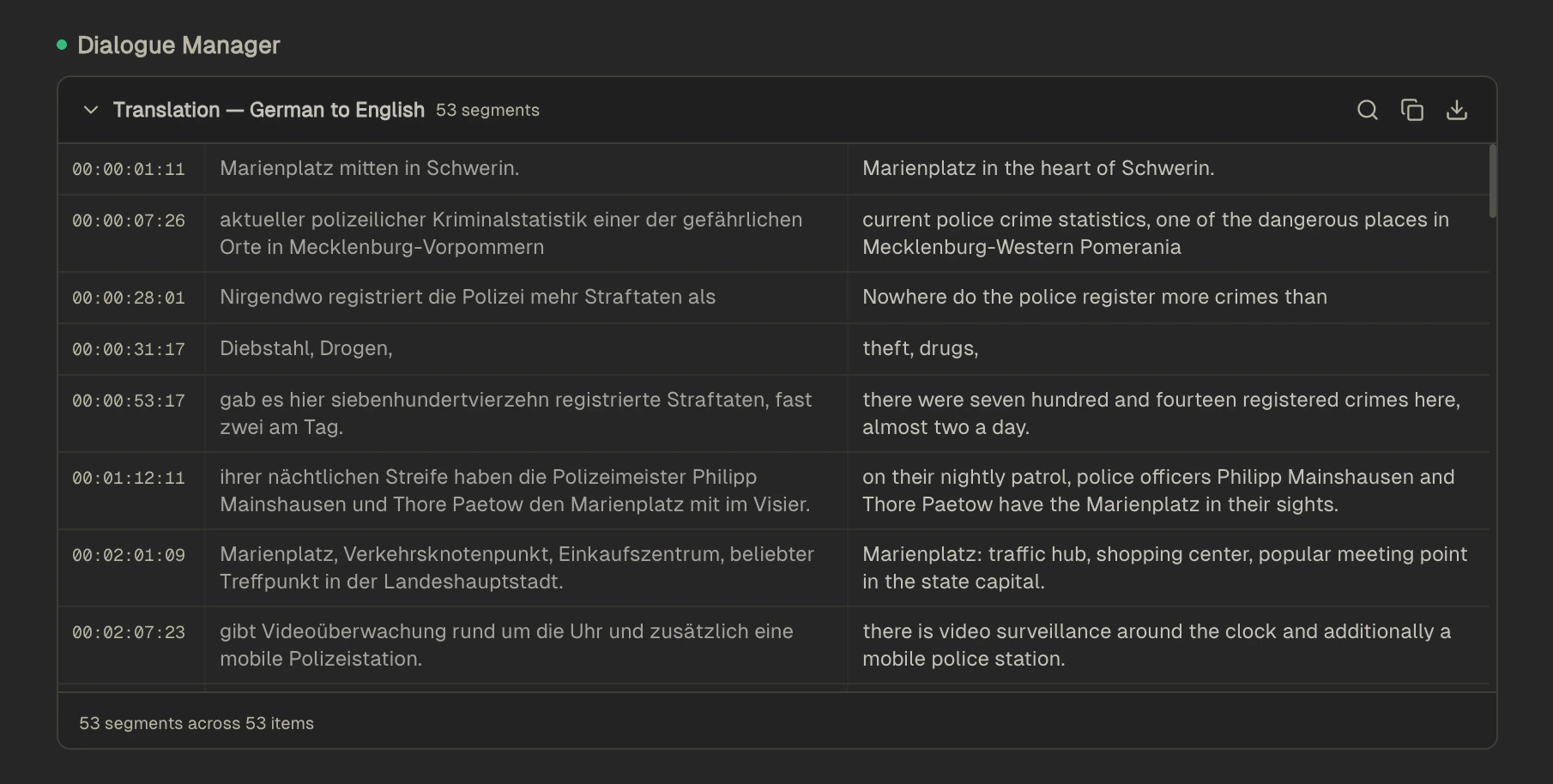
Translation
Reagent can translate transcribed dialogue into another language. Translation runs on Reagent’s servers and doesn’t happen automatically. When the dialogue you edited isn’t in English, Reagent asks whether to translate it to English. For another language, name it in your message.Volume Leveling
The Take volume leveler evens out level differences in dialogue, voice-over and vocal items, and runs on your computer. It writes a take volume envelope on each selected item that turns loud parts down and quiet parts up. It replaces the points of any existing volume envelope. Select the items in REAPER first. Leveling needs REAPER connected with the Bridge script running (see Quick Start) and the SWS extension, but no transcript. Unless your permission mode is Full access, you approve a Level take volume request first.
To hit an integrated loudness target, say “LUFS”. Reagent levels the envelope as usual, then sets each take’s volume so the whole item measures at that value.
Related
Permissions
Choose when Reagent asks before it edits or levels your items.
Audio Analysis
Find silence, measure loudness and classify sounds.
Example Workflows
Prompts for common tasks, including dialogue editing and leveling.
Privacy & Security
What Reagent sends for transcription and analysis, and where.