

Before You Start
REAPER must be open and connected to Reagent through the Bridge, the small script that runs inside REAPER. To set it up, follow the Quick Start. If REAPER wasn’t connected when you sent a message, connect it and send the message again. The Run script and Save to REAPER Actions buttons also need the connection.REAPER wasn't connected when you sent the message
REAPER wasn't connected when you sent the message
Reagent checks the connection each time you send a message. If REAPER wasn’t connected then, Reagent can’t do these in that reply:
- Run a script
- Draft one in a script block
- Search the REAPER API
How It Works
Approval and Undo
With Default permissions or Auto-review, Reagent asks before it runs a script. A Run script card replaces the message box, showing the script’s description but not the code. Click the card before you use its keyboard shortcuts.- Allow (
Cmd+Enteron macOS,Ctrl+Enteron Windows) runs the script. - Deny (
Esc) stops it, and the script block reads Cancelled. - To read the code first, open the summary line in the chat above the card and click Show code. The block reads Running… while it waits for you, but nothing has run yet.
Cmd+Z on macOS and Ctrl+Z on Windows) reverts the whole script, whether Reagent ran it or you clicked Run script.
The Script Block
Scripts appear inside the reply’s summary line, which reads, for example, Created a script, Ran a script or Ran 3 tools. The line starts closed, so click it to open it.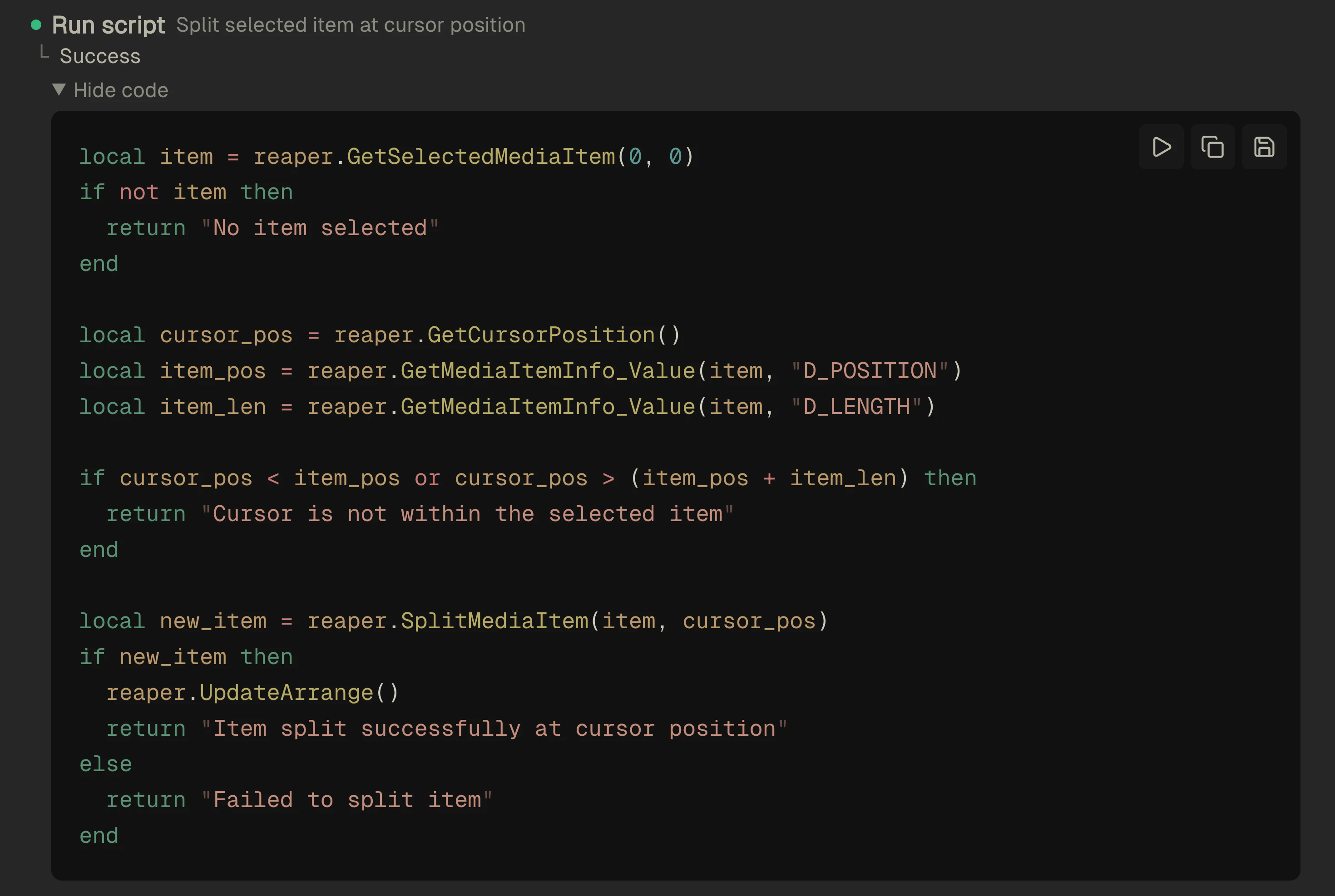
A Create script block doesn’t run or save anything on its own:
- To run it, click Run script, or ask Reagent to run it as a new step, which asks for your approval unless you use Full access.
- To change it, ask Reagent to revise it (you get a new Create script block), or copy the code into any text editor. If you edit a saved script file yourself, read Change an Existing Script first.
- To discard it, just leave it.
The summary line counts two tools for one script
The summary line counts two tools for one script
The first time Reagent drafts a script in a chat, a Load tools step may also appear, so the line counts at least two tools, such as Ran 2 tools.
Save as a REAPER Action
To make a saved action one undo point, ask Reagent to add an undo block (reaper.Undo_BeginBlock and reaper.Undo_EndBlock) before you save it. Reagent normally leaves undo code out of the scripts it runs.
1
Click Save to REAPER Actions
A form opens below the code with a name filled in from the script’s description, such as 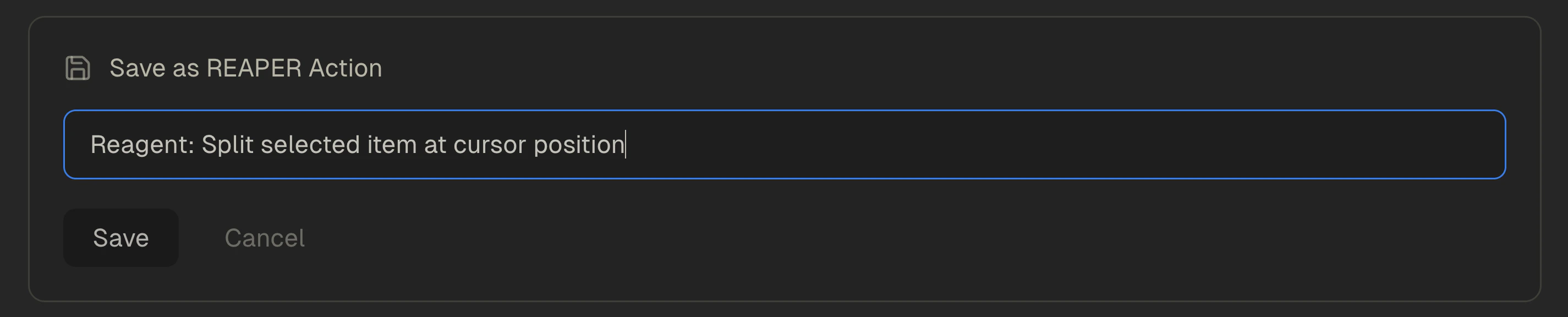
Reagent: Toggle SFX Mutes. Edit it if you like, then click Save or press Enter. Cancel or Esc closes the form without saving.2
Assign a shortcut (optional)
Reagent saves a
.lua file and adds it to the Main section of REAPER’s Action List. REAPER then opens its keyboard shortcut dialog, so switch to REAPER if you don’t see it. Assign a key, or close the dialog to skip.3
Check the result
Back in Reagent, the form shows the action’s name, such as
Script: reagent_toggle_sfx_mutes, with a button to copy it.reagent_toggle_sfx_mutes.
Reagent saves the file in a reagent folder inside REAPER’s Scripts folder, next to the Bridge files:
How the file is named
How the file is named
Reagent makes the name lowercase, replaces spaces and hyphens with underscores, removes other punctuation, and starts it with
reagent_. For example, Reagent: Toggle SFX Mutes becomes reagent_toggle_sfx_mutes.lua.A file with that name already exists
A file with that name already exists
Reagent adds a timestamp to the new file’s name instead of replacing the old file.
REAPER is in a custom location
REAPER is in a custom location
If you set a different REAPER path in Settings > Connectors (the Change path folder icon), for example for a portable REAPER install, Reagent uses the
reagent folder inside the Scripts folder that REAPER path shows.Change an Existing Script
Reagent can search and read the scripts in your REAPER Scripts folder. Name or describe one:- Save changes: the block is linked. Clicking it writes the block’s code over the file straight away, with no form, no shortcut dialog and no second action. If the file no longer exists, it saves a new file in the
reagentfolder and adds a new action. - Save to REAPER Actions: the block isn’t linked, and saving creates a new file.
Reagent vs. the Action List
A script can behave differently when Reagent runs it, from the chat or with Run script, than when you run the saved action from REAPER. If it works in one place but not the other, check these differences first:- Undo. Run from Reagent, the whole script is one undo point. Run as an action in REAPER, there’s no undo point from Reagent. The saved file contains just the script’s code. To get one, add an undo block before you save.
- Lua functions. Run from Reagent, a script gets the REAPER API plus part of standard Lua, so some functions are missing. Run as an action in REAPER, it gets everything REAPER normally gives a Lua script.
print()output. Run from Reagent, it appears below the code when the script finishes without an error. Run as an action in REAPER, it isn’t shown in Reagent.
Which Lua functions are missing when Reagent runs a script
Which Lua functions are missing when Reagent runs a script
require, dofile, setmetatable and coroutine aren’t available, and only a few io and os functions are.Ask About the REAPER API
Ask Reagent which REAPER API functions do a job, or what a function’s parameters are:REAPER API Search
Reagent looks up answers to API questions with REAPER API search, and it can also search before writing a script. It searches REAPER’s ReaScript API documentation by exact function name or by describing what it needs, such as “get item fade length”, and gets back each function’s signature, parameters and return values. That way it can call real functions instead of guessing names. The search doesn’t guarantee a working script. It covers REAPER’s own API only, not functions added by extensions such as SWS, and it’s a fixed copy of the documentation, so it doesn’t know which REAPER version you run. What the search sends. The search runs on reaperagent.com. The request contains the search text Reagent writes, such as “get item fade length”, and search settings such as how many results to return. It doesn’t include your project file or your script’s code. Reagent’s search service shares the search text with Voyage AI to find matching functions, as listed on the subprocessors page.Related
REAPER Tools
The built-in tools Reagent uses before it writes a script.
Permissions
Choose when Reagent asks before it runs a script.
Example Workflows
Prompts for common REAPER tasks.
Privacy & Security
What Reagent sends to which services, and what scripts can reach on your computer.