

REAPER Connection Problems
Reagent has no connection light. It checks REAPER each time you send a message, so to check the connection, ask:Reagent says REAPER isn’t connected
Reagent says REAPER isn’t connected
- Open REAPER. Any project works.
- Run the Bridge. In REAPER, choose Actions > Show action list…, type
reagentin the Filter box, select Script: reagent_bridge.lua and click Run. Not listed? Load it first (see the next item). The Bridge stops when REAPER quits, so run it each time, or start it automatically. - Close any dialog box in REAPER, such as a save prompt. While REAPER waits for an answer, the Bridge can’t respond.
- Deselect all media items and ask again. If Reagent now says REAPER is connected, the SWS extension is probably missing. See SWS Extension Missing.
- On Windows, check the
HOMEenvironment variable. IfHOMEpoints anywhere other than your user folder (%USERPROFILE%), Reagent and the Bridge can’t see each other, because the Bridge looks there for the.reaper-mcpfolder Reagent uses. SetHOMEto your user folder (or remove it if nothing else needs it), then restart REAPER. Not sure how? Ask your IT team, or see Still Not Working.
The Bridge isn’t in REAPER’s action list
The Bridge isn’t in REAPER’s action list
reagent in the Filter box finds nothing until you load the Bridge once on each computer. Reagent copies it into the reagent folder inside REAPER’s Scripts folder:reagent folder? Your REAPER may use a different resource folder. See REAPER in a Custom Location.Load the script
reagent_bridge.lua in the folder above and click Open.Run it
Reagent shows “REAPER bridge not installed”
Reagent shows “REAPER bridge not installed”
Scripts folder, usually because Reagent couldn’t copy them. Click Setup to open Device Setup, which copies the files and walks you through loading and running the script.Or open Settings > Connectors (Cmd+, on macOS, Ctrl+, on Windows). Under REAPER Bridge, click Install if the status says Script Not installed, or Reinstall (download icon) if it says Script Installed but you think the files are damaged.Reagent also copies any missing files each time it starts. Then restart the Bridge: quit and reopen REAPER, then run the script, or let it start automatically.Reagent shows “Bridge Updated”
Reagent shows “Bridge Updated”
Scripts folder each time it starts. If that changes the Bridge, you see Bridge Updated, but REAPER keeps running the old version until you restart the Bridge.Quit and reopen REAPER, then run the script, or let it start automatically. You don’t need to load it again.REAPER asks whether to terminate instances or start a new instance
REAPER asks whether to terminate instances or start a new instance
- Click Abort. The running Bridge carries on.
- Don’t choose New instance, and don’t save that answer with Remember my answer for this script. Two Bridges would carry out every command, so every change would happen twice.
- Terminate instances stops the Bridge. If you chose it, run the script again.
- To restart the Bridge, quit and reopen REAPER, then run the script once, or let it start automatically.
Every change happens twice
Every change happens twice
Reagent says “REAPER didn’t respond in time”
Reagent says “REAPER didn’t respond in time”
Reagent says “REAPER rejected the operation”
Reagent says “REAPER rejected the operation”
BR_GetMediaItemGUID or SWS, install SWS. Otherwise, read the details or ask Reagent what went wrong.Reagent says “Lost connection to REAPER”
Reagent says “Lost connection to REAPER”
SWS Extension Missing
Reagent needs the SWS/S&M extension, which the Bridge uses to identify media items. Reagent doesn’t warn you when SWS is missing. Instead, you see one or more of these:- Requests that read or change media items fail with REAPER rejected the operation, and the details mention
BR_GetMediaItemGUIDor “SWS Extension required for GUID-based lookup”. - While any media item is selected, many other REAPER steps fail too, including the connection check when you send a message, so Reagent can say REAPER isn’t connected even though the Bridge is running.
Quit REAPER and install SWS
Check that SWS loaded
SWS in the Filter box. Actions starting with SWS/S&M: mean SWS is installed.Start the Bridge
REAPER in a Custom Location
If your REAPER uses a resource folder other than the default, such as a portable install, point Reagent at it. Otherwise Reagent installs the Bridge, and its updates, in a folder your REAPER doesn’t use. The default resource folder is~/Library/Application Support/REAPER on macOS and %APPDATA%\REAPER on Windows.
Find REAPER’s resource folder
Scripts, is the one you need. On Windows, it usually isn’t the reaper.exe folder, unless REAPER is portable.Change the path in Reagent
Cmd+, on macOS or Ctrl+, on Windows, or click your name at the bottom of the sidebar and choose Settings.Under REAPER Bridge, REAPER path shows the Scripts folder Reagent uses now. Click the folder button (Change path) next to it, select the resource folder or its Scripts folder, and confirm. If the folder you pick contains Scripts, Reagent uses that.Check the result
Scripts folder, and the status says Script Installed.Load the Bridge from its new location
Scripts/reagent/reagent_bridge.lua with New action… > Load ReaScript… and run it. See Quick Start.Wwise Connection Problems
For setup steps, see Wwise.Reagent says Wwise is not running, or “Could not connect to Wwise”
Reagent says Wwise is not running, or “Could not connect to Wwise”
- Open Wwise 2021.1 or newer on the same computer as Reagent, with your project loaded.
- In Project > User Preferences, turn on Enable Wwise Authoring API (WAAPI), then restart Wwise.
- Use the default WAAPI ports that Reagent connects on, 8090 (HTTP) and 8080 (WAMP). If you changed them, set them back.
- Wait up to 30 seconds (Reagent remembers the last Wwise check that long), then send your message again.
Reagent says “WAAPI call timed out”
Reagent says “WAAPI call timed out”
Reagent says your Wwise version is unsupported
Reagent says your Wwise version is unsupported
File Access Problems
macOS asks whether Reagent can access a folder
macOS asks whether Reagent can access a folder
Reagent can’t use a folder (“Path is outside the allowed roots”)
Reagent can’t use a folder (“Path is outside the allowed roots”)
- Your home folder.
- REAPER’s
Scriptsfolder. - On macOS, anything under
/Volumes, such as external drives. - On Windows, drives other than the system drive (usually
C:), and network shares such as\\NAS\Audio. Admin shares, whose names end in$, don’t work.
Chat Problems
Reagent says “Something went wrong while generating a response”
Reagent says “Something went wrong while generating a response”
- Send your message again.
- Check your internet connection.
- If it keeps happening in the same chat, start a new one (New chat,
Cmd+NorCtrl+N). - Quit and reopen Reagent.
- Check your organization’s endpoint: see Enterprise Endpoint Errors.
A reply seems stuck
A reply seems stuck
- Check whether Reagent is waiting for you. If a pause symbol shows where Reagent is working and a card replaces the message box, Reagent needs you to approve a change or answer a question. Allow, deny or answer it.
- Check REAPER for an open dialog box. REAPER steps wait up to 30 seconds for an answer.
- Stop the reply with the stop button (Cancel request) or
Esc. Stopping doesn’t undo changes already made, so check your project before sending your message again. See Chat.
Replies are slow
Replies are slow
- Large projects: Requests that read every track or item take longer. Select the tracks or items you mean and say “the selected items”.
- Many steps: Reagent sends REAPER one command at a time, so many-step requests take longer.
- Model speed: Replies come from an AI model through Reagent’s service, so a slow connection slows every reply.
- Your organization’s endpoint: On Enterprise accounts, replies come from your organization’s endpoint, which can be a model server on your own computer. A slow connection, busy endpoint or slow local model slows every reply.
Reagent says “Couldn’t reach Reagent’s servers”
Reagent says “Couldn’t reach Reagent’s servers”
Reagent shows “Credits Exhausted”
Reagent shows “Credits Exhausted”
Reagent says “Temporarily rate limited”
Reagent says “Temporarily rate limited”
Enterprise Endpoint Errors
When your organization’s AI endpoint has a problem, you see one of the errors below. Quota and rate-limit errors from your organization’s provider also appear here as endpoint errors, never as credit messages. For every endpoint setting, see Custom Endpoint.The Custom Endpoint window opens and won’t close
The Custom Endpoint window opens and won’t close
Reagent says “Can’t reach your organization’s model endpoint”
Reagent says “Can’t reach your organization’s model endpoint”
Reagent says “Your organization’s model endpoint returned …”
Reagent says “Your organization’s model endpoint returned …”
Dialogue, online search or feedback doesn’t work
Dialogue, online search or feedback doesn’t work
- Transcribing or translating dialogue. A dialogue step can fail with “No transcription data found”.
- Searching the REAPER API or Wwise documentation online.
- Sending feedback.
Reagent Won’t Install on Windows
If opening the Reagent installer shows Windows protected your PC, Microsoft Defender SmartScreen has stopped an app it doesn’t recognize. To continue:Click More info
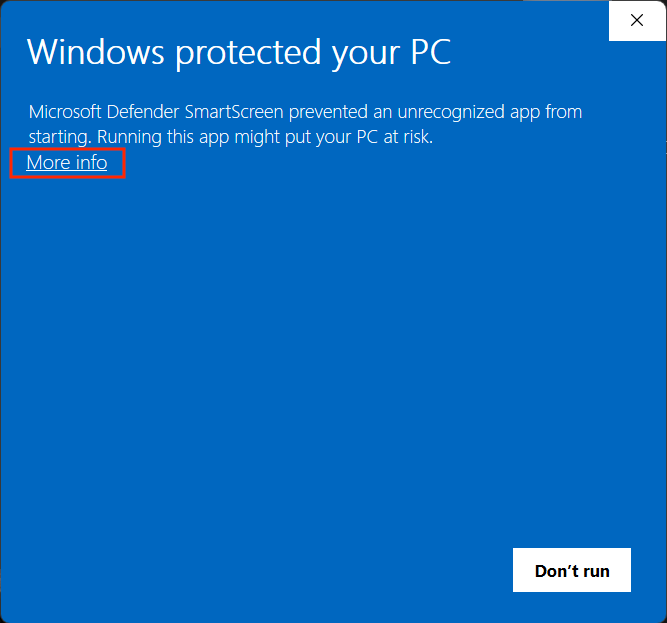
Check the app, then click Run anyway
reagent-<version>-setup.exe. Then click Run anyway.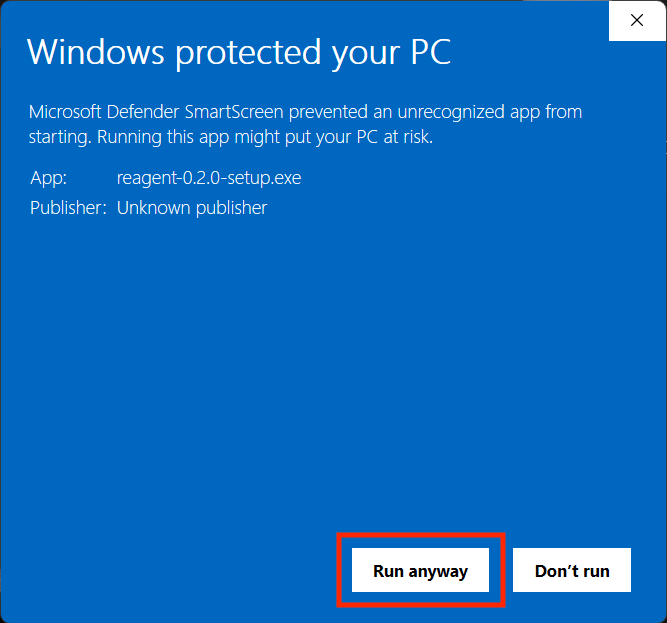
Classifying Sounds on an Intel Mac
On an Intel Mac, the Classify items step and the UCS Renamer skill’s classification step fail. On macOS 12 or 13, classification isn’t supported. UCS (Universal Category System) classification runs on your computer and, on a Mac, needs Apple silicon and macOS 14 (Sonoma) or later. Windows isn’t affected. See Audio Analysis.Still Not Working
Install any waiting update
Gather the details
main.log:Tell the Reagent team
- Send Feedback: click the speech bubble icon in the title bar, or ask Reagent to send a bug report. See Get Help.